
Messaging and capture
Send messages and save the details a customer gives you.
Use these actions when a flow needs to talk to a customer or save what they tell you.
Send message
Send message can send up to ten messages in one step.
Choose the message type that fits the task:
- Text — send a short message. Add variables such as
{{order_id}}when needed. - Options — let the customer choose from buttons.
- Carousel — show swipeable cards with images, details, and buttons.
- Form — collect several fields together.
- JSON — send custom data to your own client.
See Rich messages for examples of each type.
Common settings
- Auto-translate — translate the message into the conversation language.
- Wait for a reply — pause the flow until the customer answers.
- Internal only — show the message to your team, but not the customer.
- Raw mode — send the content without normal processing. Most flows do not need this.
Use results from a search or API
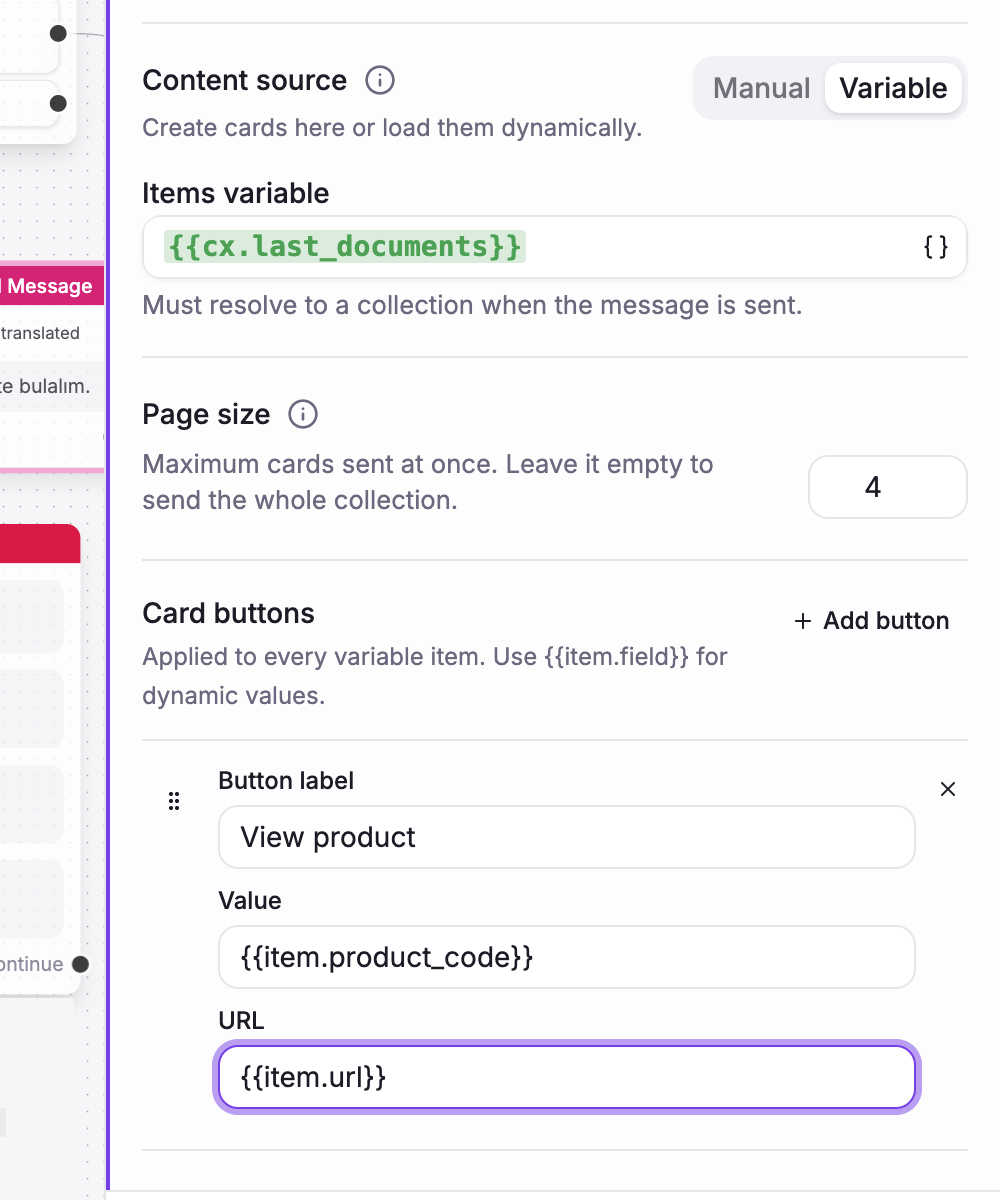
Options and Carousel can use a list stored in a variable:
- Set Content source to From variable.
- Choose the result list, such as
{{cx.last_documents}}. - Set Page size if you do not want to show every result at once.
For carousel buttons, open Card buttons and add the button once. Use fields
from each result for its value or link, such as {{item.product_code}} and
{{item.url}}.
If a button continues to another step, keep the buttons and their routes in the same order.
Save the next answer
Turn on reply capture when you need one typed answer, such as an order number:
- Choose the variable that will store the answer.
- Choose a validation rule, such as required, email, phone, or URL.
- Write the message shown when the answer is not valid.
Required selection is available for Options you add manually. Options loaded from a variable are created when they are sent, so they are not repeated as a required question.
Limits
- Up to 10 messages in one Send message action.
- WhatsApp shows up to 3 option buttons or 10 carousel cards per message.
- WhatsApp button labels should be no longer than 20 characters.
- Every WhatsApp carousel needs an intro message.
- Text messages can contain up to 500 characters.
Capture user
Use Capture user to ask for a customer's name, email, or phone number and save the details to their profile.
- Turn on the fields you need.
- Write a short question for each field.
- Turn on Auto-translate if the questions should follow the customer's language.
At least one of email or phone must be enabled. Vivollo validates both formats before saving them. Ask only for information you will use, and briefly explain why you need it.
To send a conversation to a person, see Live handoff.
Example
Send message (welcome)
  → Capture user (name + email)
  → Send message (ask what they need)