
Reading the results
The report, the individual answers, and the settings behind both.
In beta. Surveys are being tested on selected accounts and are not switched on for every workspace yet.
The report
Surveys → Report shows the window you choose against the period before it:
- Satisfaction — the positive share of ratings.
- Dissatisfaction — the negative share.
- Recommendation — promoters minus detractors.
- Average score — every answer on a 0–100 scale.
- Response rate — see below.
- Median time to answer — from the card appearing to the first answer.
- Finished after starting — of those who answered anything, how many reached the end.
Response rate, three ways
You choose what the rate is measured against, because the three mean different things:
- Sent — every card that went out, including ones nobody saw.
- Delivered — only the cards known to have arrived.
- Seen — only the cards somebody looked at. The strictest reading.
Only the web widget reports back on delivery and reading, so Delivered and Seen are unavailable for surveys sent on other channels.
Small numbers
Under a certain number of answers a score moves several points on its own. The report says low confidence and shows the margin, rather than letting you read a change that is really just sampling. Breakdowns by channel, agent and language stay closed until enough answers have arrived to split.
Scores for a single agent are held back until enough answers sit behind them.
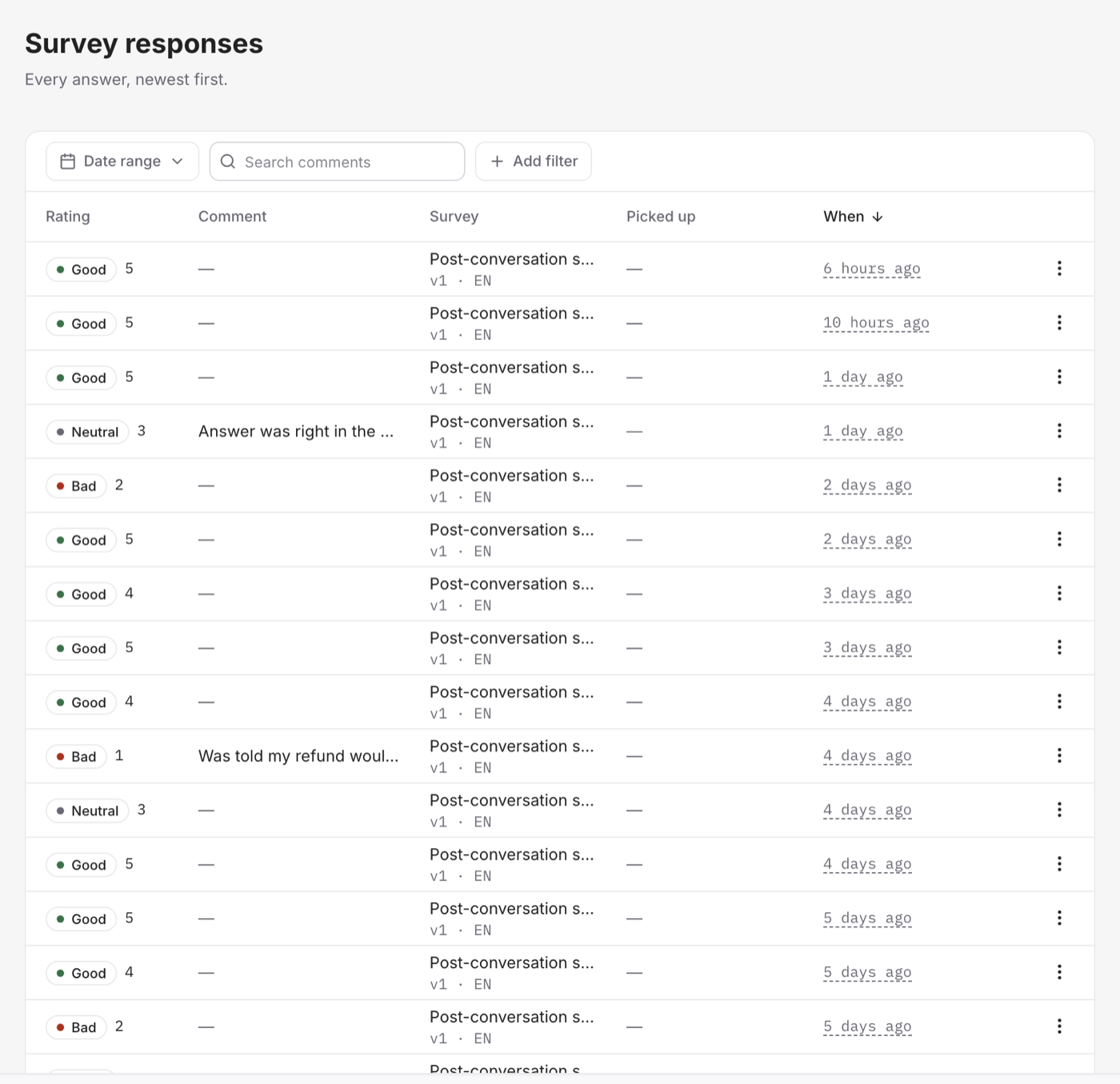
Every answer
Surveys → Responses lists the answers newest first: the rating, any comment, the channel, the agent who handled it, the language, the tags the conversation carried and which version of the survey was asked.
Filter by any of those, or search the comments. Open one to read the whole conversation, and Mark as picked up when someone has dealt with it — so a low score is not read twice by two different people, or by nobody.
Settings
Surveys → Settings applies to every survey in the workspace.
- Send surveys — off by default. Nothing goes out until this is on.
- Cooldown — how long before the same person is asked again.
- Response window — how long an unanswered survey stays open.
- Neutral answers — whether a middling score (a 3 out of 5) counts against you, which is what most benchmarks assume, or is left out.
- Alerts — email owners and admins when an answer lands in a bad band. One email per answer.
Vivollo also caps how many surveys go out per hour, to protect your account with the messaging providers. The settings screen shows the cap and how much of it is used; ask support if you need it raised.