
Connecting your store
Let the assistant search your catalog, resolve a product code and check an order.
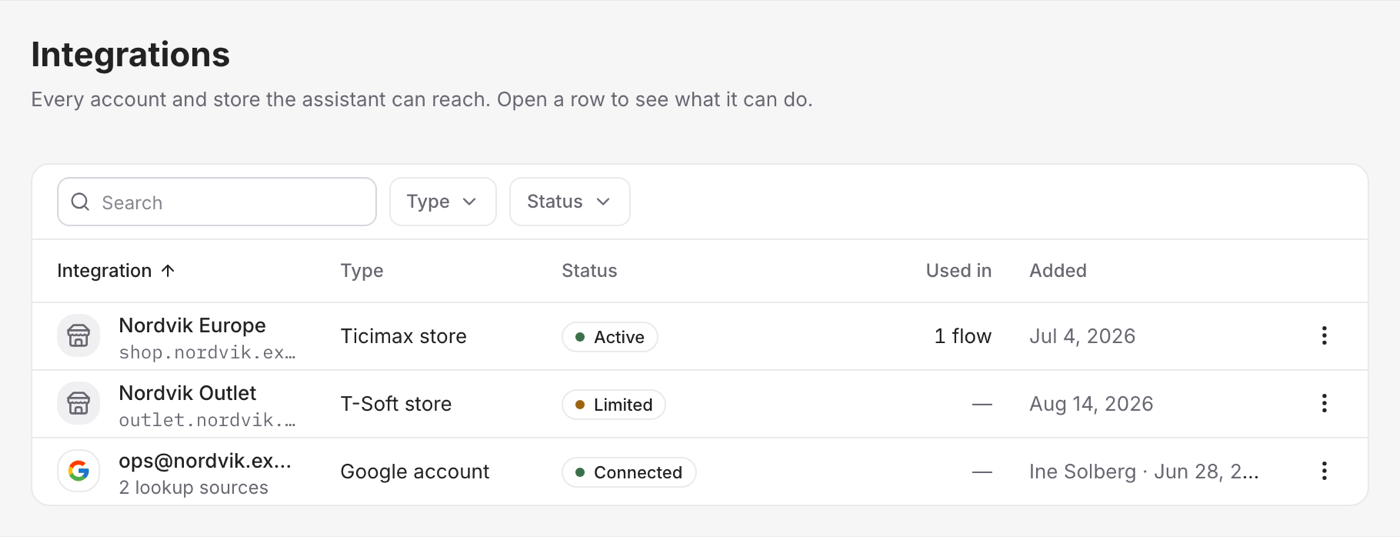
A connected store is a data source, not a messaging channel. Once it is connected the assistant reads from the store directly, so what it tells a customer is what the store says at that moment — not what was true at last night's sync.
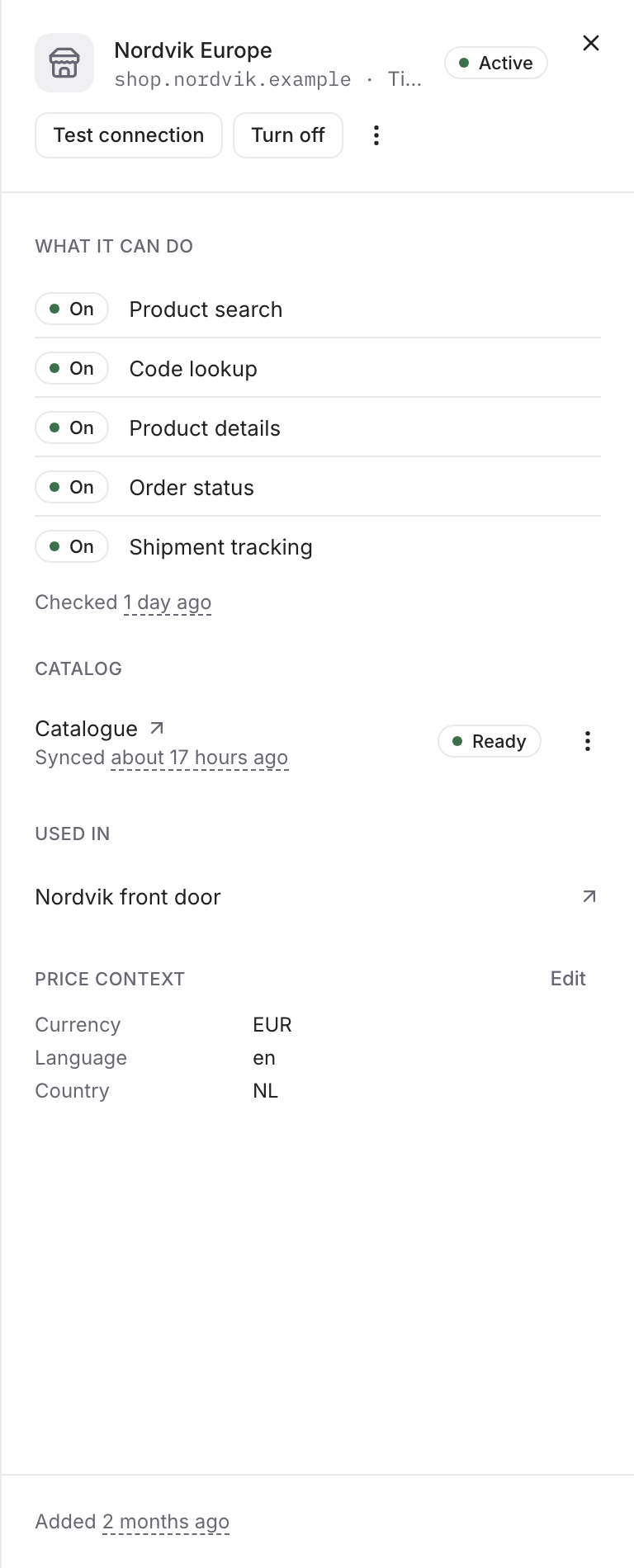
What the assistant can do
Vivollo tests the connection and offers the assistant only what your account allows. The store's row shows which of these are on:
- Product search — find products from a description, narrowed by real values: category, price range, colour, size, in stock. Sold-out products are listed last, or left out entirely.
- Code lookup — the customer quotes a product or stock code, a model code, a SKU or a barcode instead of describing anything. A model code brings back every colour of that garment.
- Product details — every variant with its price, stock and options. Pick a colour and the sizes offered are the ones that colour actually comes in.
- Order status — status, date, total and the items ordered.
- Shipment tracking — carrier, tracking number and a tracking link once it has shipped.
Products are shown as cards the customer can tap, not as a list in text.
Codes read off a photo or a label mix up O with 0, and I with 1. When a code only matches under the other reading, the assistant says so and asks the customer to confirm before using it.
Safe order lookup
An order is only shown when the customer gives both the order code and the email address or phone number used on the order. When they do not match, the assistant does not reveal whether the code exists — it asks the customer to check both.
Connect a store
Open Settings → Integrations and choose Connect store. You will need a web service user created on your platform; Vivollo never asks for your own store login.
Ticimax
- Your store address
- Web servis üye kodu — in the Ticimax panel under Entegrasyonlar › Web Servis › Üye Kodu
Order status and tracking also need the order service (SiparisServis) open on
your account. Vivollo checks that when you connect and tells you what it found.
T-Soft
- Your store address
- Web servis kullanıcı adı and Web servis parolası — in T-Soft under Ayarlar › Kullanıcılar › Web Servis Kullanıcıları › Yeni Ekle
Order status and tracking need the order query licence on your T-Soft account.
Shopify, WooCommerce and Trendyol
Live store connections for these are on the way. You can already index a Shopify, WooCommerce, Trendyol or Ticimax catalog as a knowledge source today — that gives the assistant product search, without the live order tools.
Store settings
- Currency and Language — what the store quotes in.
- Family code length — how many leading characters of a product code its colour variants share. Set it and a quoted code brings back the whole garment instead of one colourway; leave it empty to group the way your platform already does.
- Test connection — re-checks what the store allows. Run it after you change permissions on the platform.
If the credentials stop working, the store is marked Credentials rejected. Use Replace credentials; the store keeps its settings and its history.
Deleting a store only forgets the credentials here — the web service user on your platform is untouched. Assistants using it lose those tools on their next reply.
Make the catalog searchable
Connect the store to a Products collection as a Store source. The catalog is indexed once a day so search is fast and thorough; price and stock are still read from the store when a customer asks.