
Writing and organizing
Write articles and Q&A, upload files, and keep it all tidy in folders.
Everything in a knowledge base sits in one list, whether you wrote it or it came from a connected source. Down the side: All articles, Drafts, Suggestions, your folders, and Synced content with each connected source under it.
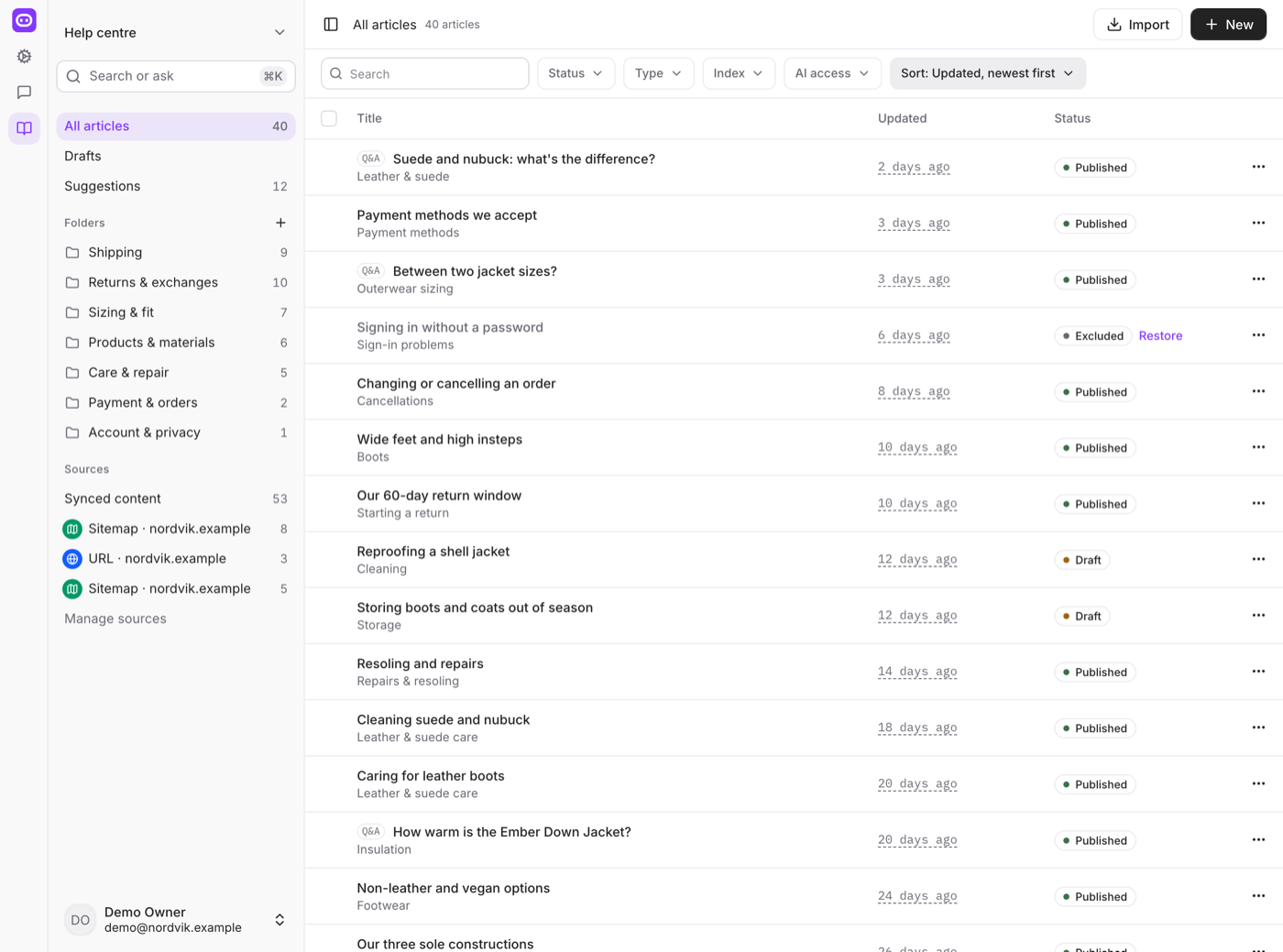
Filter the list by Status, Type, Index or AI access, and sort it by what changed most recently.
Add content
Use New to add:
- Article — the editor. Type
/to insert a heading, list, quote, table or divider. - Q&A — one question with its answer, for the things customers ask word for word.
- Upload files — PDF, Word, Excel and text files. Each file becomes a document.
- Import Q&A — an Excel or CSV file with a question and an answer per row, up to 500 rows. Point it at the right columns, pick a folder, and choose whether to publish straight away or keep everything as drafts.
Use headings. A long article is split into passages at its headings, and the assistant answers with the section that fits rather than the whole page.
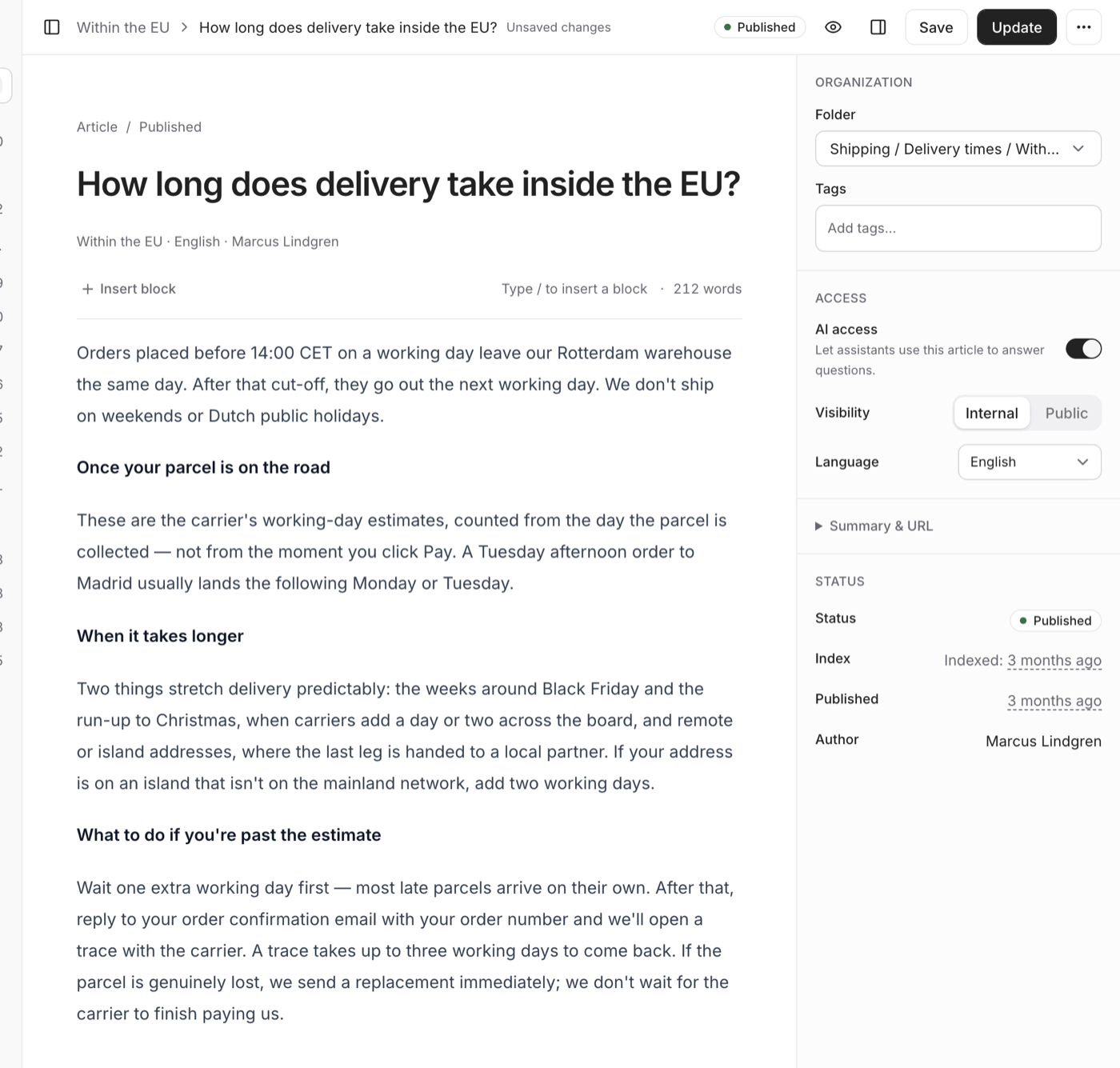
Draft, published, excluded
- Draft — saved, visible to your team, never used in an answer.
- Published — the assistant can use it. It is indexed within moments, and you see when that is done.
- Excluded — published but taken out of AI answers, with AI access off. Use it for something your team should see and the assistant should not say.
Folders
Group articles by topic: shipping, returns, sizing. Folders can be nested three levels deep.
The folder path is part of what the assistant reads, so a sensible name helps it pick the right article. Moving a published article puts it back in the queue to be indexed under its new path — a few moments, nothing you need to do.
Synced content
Pages from a connected source appear under Synced content. You cannot edit them here — they come from the source and are replaced on the next sync — but you can turn AI access off for a single page you would rather it did not use.
See Adding content for connecting a source.
Suggestions
When customers keep asking something the assistant could not answer, Suggestions collects it and offers you a draft to start from. It reads as a short list of real questions rather than a report — see Knowledge gaps.
Search or ask
Search or ask at the top of Knowledge runs the same search the assistant runs, and shows the passages it finds. No AI answer, no guessing: if the right passage is not in the list, the article is missing or worded differently from the question.