
Navigating the panel
Find your way around the three parts of Vivollo.
The panel has three parts, on the narrow rail down the left edge: Admin, Messages and Knowledge.
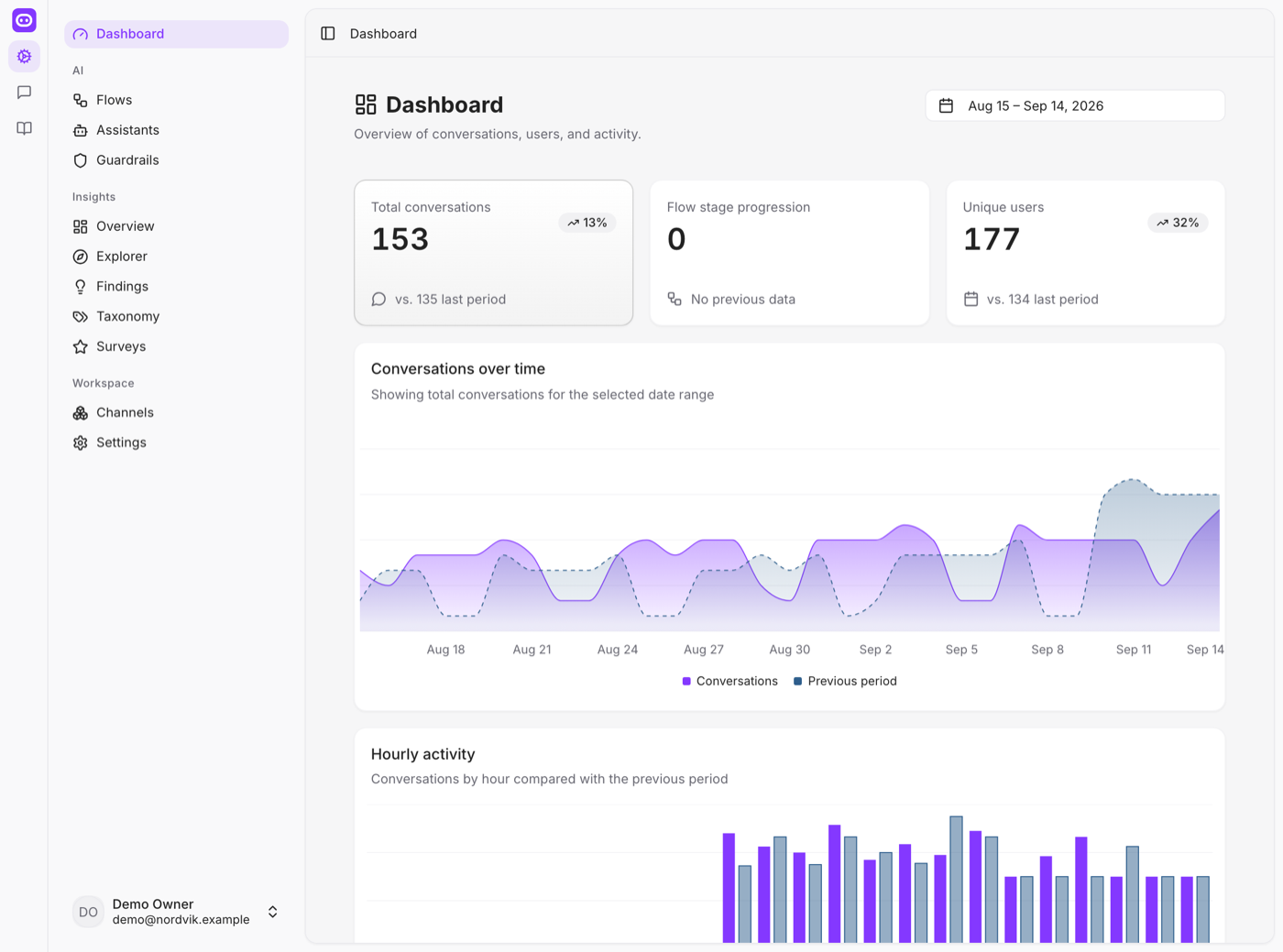
- Admin — set up the assistant, the flows, the channels and the workspace.
- Messages — read customer conversations and take one over.
- Knowledge — write and organise everything the assistant answers from.
You only see the parts your role gives you access to.
Admin
Dashboard opens on the numbers: total conversations, unique customers, how far people get through your flow, and conversations over time and by hour — each one next to the period before it.
AI
- Flows — the steps of a conversation, drawn on a canvas. Executions underneath counts how often each flow, and each step in it, actually ran.
- Assistants — what the AI knows, how it sounds, which tools it may use.
- Guardrails — safety, scope and privacy checks on every turn.
Insights
- Overview — what customers are asking about, and how that is moving.
- Explorer — pick a segment apart: a topic, a channel, a week.
- Findings — patterns Vivollo noticed without being asked.
- Taxonomy — the labels conversations are classified with. Dimensions are the labels themselves; Review queue is where suggested ones wait for your approval.
Workspace
- Channels — WhatsApp, Instagram, your website, help desks.
- Settings — General (name, language, time zone), Members, Integrations (connected stores and accounts), Webhooks and API keys.
Messages
Every conversation, across every channel, in one list. Open one to read it, see what the assistant did and why, and reply yourself. See Inbox.
Knowledge
Articles, Q&A, uploaded files and synced pages, with Drafts, Synced content, Suggestions, Sources and Filters down the side. See Knowledge.
In your language
The panel is fully available in English and Turkish. Set it under Settings → General; the same setting is also the language the AI starts in. See Languages.
A useful first tour
- Add a test channel in Channels.
- Open Knowledge and add a few reliable articles or a source.
- Look at the default flow in Flows.
- Switch to Messages and send yourself a test message.
- Come back to Insights once you have collected a few real conversations.