
Fields and filters
Structure collection data so the assistant can return precise results.
Fields store the parts of each collection item. Filters use those fields to narrow search results.
Field types
| Type | Use it for | Available searches |
|---|---|---|
| Text | Names, codes, titles, URLs | Exact, contains, starts with, ends with |
| Long text | Articles and descriptions | Meaning and keyword search |
| Text list | Tags, sizes, colors, features | Contains any or all |
| Number | Price, stock, rating, capacity | Greater, less, between |
| True/false | In stock or enabled | Yes or no |
| Date | Publish or event dates | Before or after |
| Location | Coordinates | Within a distance |
Use the correct type. A price stored as a number can be filtered as “under 500”; a price stored as text cannot.
How filters work
The assistant can turn a request such as “black, size 38, under 2,000 TL, in stock” into filters for color, size, price, and stock. Filters and meaning-based search can run together.
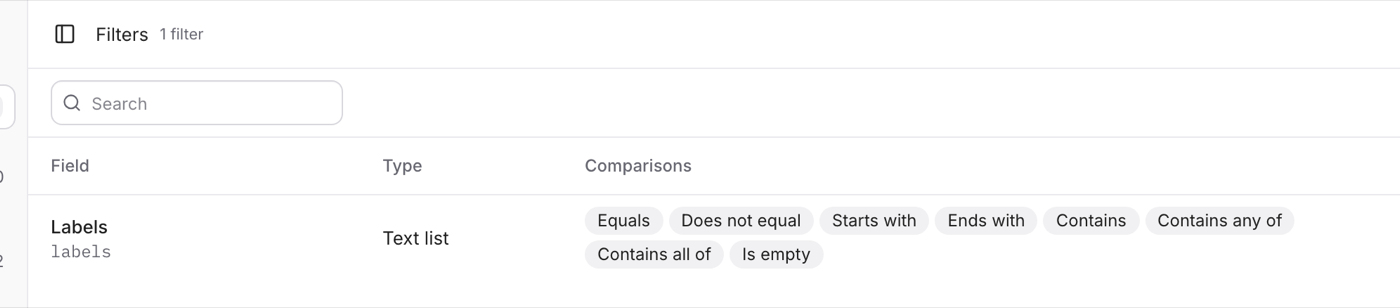
Open Filters in a collection to see exactly which fields a flow can filter by, what type each one is, and which comparisons it allows — equals, at least, at most, contains, starts with, is empty, and so on.
For product variants, Vivollo checks that requested attributes exist in the same available variant. It does not treat a red XL item as available just because red and XL appear on different variants.
Tips
- Use a ready-made collection type when one fits your content.
- Keep price, stock, size, and color fields current for product catalogs.
- Test common customer wording after changing the schema.
- Use Custom only when you need your own field structure.